Saturday, April 5, 2014

Running my VM’s and using external drivebays – TIP

Hello everyone and cheers from Build in San Francisco!

I always have a backup plan but it’s still always horrifying when your hardware fails just before an important presentation.

I was going to speak at the Pacific ITPros user group meeting on Tuesday and about an hour before starting my presentation I lost all my demo VM’s! I wouldn’t writing this if this wasn’t the third time this has happened for the same reason… I’m super happy about running my VM’s now on my current machine. I have a Samsung 9 Series 15” ultrabook and I’m having still hard time on finding anything better on the market although I’d like to buy a new on already. If you know some other competitor at the same size and weight with the following key specs please let me know:

  • i7 processor
  • 16GB RAM
  • 1GBit ethernet + 3 USB ports
  • VGA and HDMI ports

This combined with an external USB3 harddisk bay with an SSD harddisk and (the stolen) Disk Dedup from Server 2012 R2 makes a superbly high performance, light and modular demo machine to carry with you on an airplane.

Everything else works fine but the external disk bay. This one I know had until Tuesday was the third one that has broken. And what’s even more annoying is that it’s always the USB3 connector braking. Luckily I have an extra one that has yet failed or even shown signs of failing. It makes replacing the cable a bit harder but the simple tip I have to give is to always use drive bays that have the same interface model that you computer has!

So never this one again:

WP_20140403_012

But always this one:

WP_20140404_004

Wednesday, March 26, 2014

Troubleshooting Windows Phone (Lumia) battery drain

As it seems many others have had the same problem I decided to share my experiences. I don’t teach or work with phone troubleshooting but it’s a great example of showing that troubleshooting is both methodology and knowledge of the system at hand.

My Lumia 920 suddenly a few weeks ago started to drain it’s battery in a few hours. I did what everyone does and went to Google to find people with the same problem. I did everything suggested and prevented apps from running in the background and disabled my WLAN/BT/NFC etc. Nothing seemed to work. So there I was sitting with my phone and no experience about the OS itself wondering what to do next.

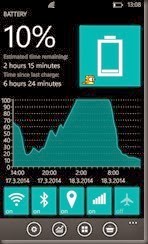
As it seems to me that the phone was working well before something happened a few weeks ago it must have happened because of a software update, change at the telcos end or a hardware fault. To start ruling out stuff I first put the phone in flight mode and realized it would be better but the problem wasn’t solved totally. As I don’t have a proper meter to see the drainage I couldn’t really tell what was just because of less data transfer and what might the “extra” drainage. So first stop was to download something to meter the drainage. I downloaded an app called Battery and waited for a while. It looks like this:
wp_ss_20140318_0002 

You can see the huge drop after charging the phone… Now that nothing has the permission to run on background how does Skype answer a call although it’s not running? So apps can keep running although not allowed to do so? Scary…Annoying… Well the worst thing is that MS doesn’t allow any access to the processes list of the OS so we can’t know what is actually running. One time that I really miss even Task Manager. So it must be because of some software but software have I installed? Luckily you have a list at www.windowsphone.com when you log on to your account and choose Purchase history under My Phone. Using this list I started to uninstall apps. In the morning I would uninstall a few newest installations (after the time this started) and in the afternoon I would use my Battery app to see if it helped. After I had uninstalled all I still had the same problem. Bummer.

What I did next was to make sure all syncs were up to date and all data saved to somewhere outside of the phone. I then reset the whole phone. As I guessed all trouble was gone. I reinstalled Battery and saw that everything actually was fine.

wp_ss_20140326_0001

I then upgraded my phone to Black and rechecked that battery was fine. I then reinstalled software that I actually really needed and all the time kept my eye on the battery. I took special care on looking at the meters when installing something that communicates although blocked (Skype, Whatsapp etc.).

Finally after installing a certain app everything went horrible. My battery drained at the speed of 40% per hour and the phone was boiling hot. I won’t mention this software as I promised the developer 24hours to fix it before screaming out in social media. They fixed it and it wasn’t a “big” App like WhatsApp or Skype but a small app you might never bump into.

Baselines, meters, methodology, luck, experience, knowledge of subject and object – all play an important role in troubleshooting.

And MS please give us an API to look what’s actually running on the phone…

Allow computer policy RSOP data for limited users

What I commonly do is allow the limited users to see all RSOP data on GPRESULT or RSOP.MSC. By default this is not allowed so when you troubleshoot a workstation you can’t gather the needed data to single output but instead need to gather it twise: once with the logged on user and once with an admin account.

This is easy to change by changing this delegation in GPMC:

image

You just need to add this permission to the Authenticated Users group and your done!

Monday, March 24, 2014

Quick guide to Azure VM start/stop with PowerShell

I had a specific need to just quickly start and stop my VM on Azure. Here’s a quick run through.

1. Create your Azure VM (Won’t go through this here)

2. Install Microsoft Web Platform Installer

3. Start Windows Azure Powershell

4. Run Add-AzureAccount (use your Microsoft Account etc. to authenticate)

5. Run Get-AzurePublishSettingsFile and download the settings file

6. Run Import-AzurePublishSettingsFile "Filenameyoujustdownloaded”

7. Run Get-AzureVM (note the name of your service and vm)

8. Run Start-AzureVM -Name erinome -ServiceName xencloud1 (replace names with yours)

That’s it! Same goes for Stop-AzureVM

Tuesday, June 25, 2013

Group Policy Settings for Windows 8 and Windows Server 2012

The GPO Policy Definitions are again not all in either W8 or Windows Server 2012. Here are screenshots from both so you can see the difference:


image


image


So this makes it tedious to get your Central Store up to date Sad smile

Luckily this one has it all, in one place: http://www.microsoft.com/en-us/download/details.aspx?id=36991


Sami