Wednesday, May 28, 2014

Wioski 2.1 Out Now!

I’ve finally released Wioski 2.1 out to production. Changes are minor or big depending on perspective. Head to http://www.wioski.com/

Changes:
- New and better Windows PE used for the installation

- Support for Windows 8.1 (update) added

- Changed the minimum disk size to 40GB instead of the old 20GB

ATTENTION!! For fully automated installation the WIM-file used as the install.wim for Wioski can only have one image. If you have many images you should use the following DISM command to export the image to a new WIM-file:

dism /export-image /sourceimagefile:install.wim /sourceindex:1 /destinationimagefile:install2.wim

Remember to rename the wim-file to install.wim before copying it to the Wioski installation folder.

If you don’t know how many images a wim-file has use the below syntax to figure it out:

dism /get-imageinfo /imagefile:install.wim

Sami

Wednesday, May 21, 2014

TechEd North America 2014 results are in!

The results are in and this couldn’t have gone better for meSmile

Some stats about TehcEd:

  • 10000 attendees
  • over 400 speakers
  • 658 different sessions

My BlackBelt Troubleshooting Windows 8.1 was evaluated as the best session of TechEd NA 2014 and my BitLocker session was on shared #5 spot.

In speaker evals my both sessions were on the shared #1 spot!

If you haven’t seen the sessions you can watch them on Channel 9:

On my own Windows track I was number #1 and #2 on all scores!

clip_image002

A short story of my TechEd’s so far: I’ve been trying to get in to TechEd for years but as most of my publications have been in Finnish it has been almost impossible. Last year was my first ever TechEd and it started out great. In the US I was #19, in TechEd Europe I was the best external speaker losing only to Mark Russinovich and TechEd Australia 2013 I won in all categories. This year I hope to go to TechEd Europe and maybe New Zealand at least.

Thanks for all who made this happen, saw the sessions and gave evaluations! And as this is the closest I probably get to an Oscar speech I would like to first thank my Wife for all the support and pushing me to new levels and my Dad for giving me this profession.

Sami

Saturday, May 10, 2014

BitLocker strengthening at TechEd North America

I promised my viewers that I’d give the presented GPO-settings as a prebuilt Group Policy object so here you go!

Download BitLocker-policy

Friday, April 25, 2014

Enabling vPro for full KVM (quick and dirty method on a Dell workstation)

I get asked this question so often I thought I’d better write it down for future reference.

I always buy computers that have Intel vPro. It costs me more but I can debug BIOS/UEFI issues and blue screen as I have total control of my machines with a hardware based KVM on all workstations as well as servers. This has been the case for servers for long but only for the past few years has it been available for workstations and laptops as well.

The machine I’m using for demonstrations is a Dell Optiplex 7010. I’ve ordered it with vPro and made sure it’s compatible with the latest KVM-mode. You can find info and the software I’m using from here: http://realvnc.com/products/viewerplus/

NOTE! This is a very simple and small environment so it’s super Quick&Dirty approach. You can use certificates and stuff for an Enterprise environment to make it more automated and secure.

- To get it up and running boot up your new machine and press F10 to get to the boot menu:

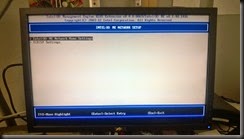
- Choose the Intel Management Engine BIOS Extension (MEBx)

WP_20140425_003

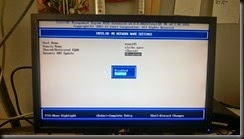
- Now Login using the default password admin

(that might be different on other systems though) 
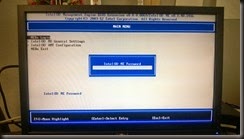
WP_20140425_004

- Change the password to what you want and make sure you remember it!

- Now choose AMT Configuration

WP_20140425_005

- Choose Network setup

WP_20140425_006

- Choose Network name settings

WP_20140425_007

- Give the computer a name

This can be the same as your Windows’ computer name. I use the same name but a different suffix.
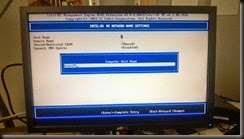
WP_20140425_008

- Give the Domain Suffix

I use a different DNS Zone that accepts Dynamic Updates without authentication. Makes it easy to find my vPro enabled machines and doesn’t require the encryption, authentication and certificates that I would use in a more enterprise environment.

WP_20140425_009

- Next enable Dynamic Updates

WP_20140425_010

- The last thing is to remember to active the Network Access!

WP_20140425_011

There you go! Now on you can access your vPro chip with a browser by typing in the address: http://computername.elaiho.vpro:16992/ The username is Admin.

And in my case I mostly only use the VNC Viewer Plus. Here you can see a few pictures on how it looks like in both ends:

image

image

image

image

And this is what it looks like at the client end by default. You can see the the red/yellow lines that tell the client it’s been remote controlled:
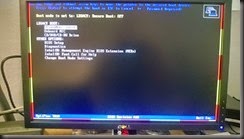
WP_20140425_015

I love it! Makes my life so much easier!

Sami

Friday, April 11, 2014

New Group Policy settings in Windows 8.1 Update

As there’s no official list yet here’s my own. I dug it from the ADMX-files.

Let users turn on and use Enterprise Mode from the Tools menu
        This policy setting lets you decide whether users can turn on Enterprise Mode for websites with compatibility issues. Optionally, this policy also lets you specify where to get reports (through post messages) about the websites for which users turn on Enterprise Mode using the Tools menu. If you turn this setting on, users can see and use the Enterprise Mode option from the Tools menu. If you turn this setting on, but don't specify a report location, Enterprise Mode will still be available to your users, but you won't get any reports.If you disable or don't configure this policy setting, the menu option won't appear and users won't be able to run websites in Enterprise Mode.
     
Use the Enterprise Mode IE website list
        This policy setting lets you specify where to find the list of websites you want opened using Enterprise Mode IE, instead of Standard mode, because of compatibility issues. Users can't edit this list.If you enable this policy setting, Internet Explorer downloads the website list from your location (HKCU or HKLM\Software\policies\Microsoft\Internet Explorer\Main\EnterpriseMode), opening all listed websites using Enterprise Mode IE.If you disable or don't configure this policy setting, Internet Explorer opens all websites using Standards mode.
     
Prevent the usage of OneDrive for file storage
        This policy setting lets you prevent apps and features from working with files on OneDrive.If you enable this policy setting:* Users can’t access OneDrive from the OneDrive app and file picker.* Windows Store apps can’t access OneDrive using the WinRT API.* OneDrive doesn’t appear in the navigation pane in File Explorer.* OneDrive files aren’t kept in sync with the cloud.* Users can’t automatically upload photos and videos from the camera roll folder.If you disable or do not configure this policy setting, apps and features can work with OneDrive file storage.
     
Prevent OneDrive files from syncing over metered connections
        This policy setting allows configuration of OneDrive file sync behavior on metered connections.

Save documents to OneDrive by default
        This policy setting lets you disable OneDrive as the default save location. It does not prevent apps and users from saving files on OneDrive. If you disable this policy setting, files will be saved locally by default. Users will still be able to change the value of this setting to save to OneDrive by default. They will also be able to open and save files on OneDrive using the OneDrive app and file picker, and Windows Store apps will still be able to access OneDrive using the WinRT API. If you enable or do not configure this policy setting, users with a connected account will save documents to OneDrive by default.
     
Show Windows Store apps on the taskbar
        This policy setting allows users to see Windows Store apps on the taskbar.If you enable this policy setting, users will see Windows Store apps on the taskbar.If you disable this policy setting, users won’t see Windows Store apps on the taskbar.If you don’t configure this policy setting, the default setting for the user’s device will be used, and the user can choose to change it.

PS. There are some policies related to Japanese language that are not here…

Saturday, April 5, 2014

Running my VM’s and using external drivebays – TIP

Hello everyone and cheers from Build in San Francisco!

I always have a backup plan but it’s still always horrifying when your hardware fails just before an important presentation.

I was going to speak at the Pacific ITPros user group meeting on Tuesday and about an hour before starting my presentation I lost all my demo VM’s! I wouldn’t writing this if this wasn’t the third time this has happened for the same reason… I’m super happy about running my VM’s now on my current machine. I have a Samsung 9 Series 15” ultrabook and I’m having still hard time on finding anything better on the market although I’d like to buy a new on already. If you know some other competitor at the same size and weight with the following key specs please let me know:

  • i7 processor
  • 16GB RAM
  • 1GBit ethernet + 3 USB ports
  • VGA and HDMI ports

This combined with an external USB3 harddisk bay with an SSD harddisk and (the stolen) Disk Dedup from Server 2012 R2 makes a superbly high performance, light and modular demo machine to carry with you on an airplane.

Everything else works fine but the external disk bay. This one I know had until Tuesday was the third one that has broken. And what’s even more annoying is that it’s always the USB3 connector braking. Luckily I have an extra one that has yet failed or even shown signs of failing. It makes replacing the cable a bit harder but the simple tip I have to give is to always use drive bays that have the same interface model that you computer has!

So never this one again:

WP_20140403_012

But always this one:

WP_20140404_004

Wednesday, March 26, 2014

Troubleshooting Windows Phone (Lumia) battery drain

As it seems many others have had the same problem I decided to share my experiences. I don’t teach or work with phone troubleshooting but it’s a great example of showing that troubleshooting is both methodology and knowledge of the system at hand.

My Lumia 920 suddenly a few weeks ago started to drain it’s battery in a few hours. I did what everyone does and went to Google to find people with the same problem. I did everything suggested and prevented apps from running in the background and disabled my WLAN/BT/NFC etc. Nothing seemed to work. So there I was sitting with my phone and no experience about the OS itself wondering what to do next.

As it seems to me that the phone was working well before something happened a few weeks ago it must have happened because of a software update, change at the telcos end or a hardware fault. To start ruling out stuff I first put the phone in flight mode and realized it would be better but the problem wasn’t solved totally. As I don’t have a proper meter to see the drainage I couldn’t really tell what was just because of less data transfer and what might the “extra” drainage. So first stop was to download something to meter the drainage. I downloaded an app called Battery and waited for a while. It looks like this:

wp_ss_20140318_0002 

You can see the huge drop after charging the phone… Now that nothing has the permission to run on background how does Skype answer a call although it’s not running? So apps can keep running although not allowed to do so? Scary…Annoying… Well the worst thing is that MS doesn’t allow any access to the processes list of the OS so we can’t know what is actually running. One time that I really miss even Task Manager. So it must be because of some software but software have I installed? Luckily you have a list at www.windowsphone.com when you log on to your account and choose Purchase history under My Phone. Using this list I started to uninstall apps. In the morning I would uninstall a few newest installations (after the time this started) and in the afternoon I would use my Battery app to see if it helped. After I had uninstalled all I still had the same problem. Bummer.

What I did next was to make sure all syncs were up to date and all data saved to somewhere outside of the phone. I then reset the whole phone. As I guessed all trouble was gone. I reinstalled Battery and saw that everything actually was fine.

wp_ss_20140326_0001

I then upgraded my phone to Black and rechecked that battery was fine. I then reinstalled software that I actually really needed and all the time kept my eye on the battery. I took special care on looking at the meters when installing something that communicates although blocked (Skype, Whatsapp etc.).

Finally after installing a certain app everything went horrible. My battery drained at the speed of 40% per hour and the phone was boiling hot. I won’t mention this software as I promised the developer 24hours to fix it before screaming out in social media. They fixed it and it wasn’t a “big” App like WhatsApp or Skype but a small app you might never bump into.

Baselines, meters, methodology, luck, experience, knowledge of subject and object – all play an important role in troubleshooting.

And MS please give us an API to look what’s actually running on the phone…